If you’re learning Python, one of the first real-world skills you’ll need is handling files. Whether it’s saving user data, reading logs, or processing text files, learning how to read and write files in Python is essential for building practical programs. In this guide, you’ll understand file handling in a simple, hands-on way.
Why File Handling Matters in Python
Almost every application interacts with files in some way. Python makes this process straightforward so you can focus on logic instead of complexity.
Here’s what file handling helps you do:
- Store data permanently (even after the program stops)
- Read configuration files or datasets
- Save logs for debugging
- Export results from your program
Without file handling, your programs would lose all data once they stop running.
Opening Files in Python (The First Step)
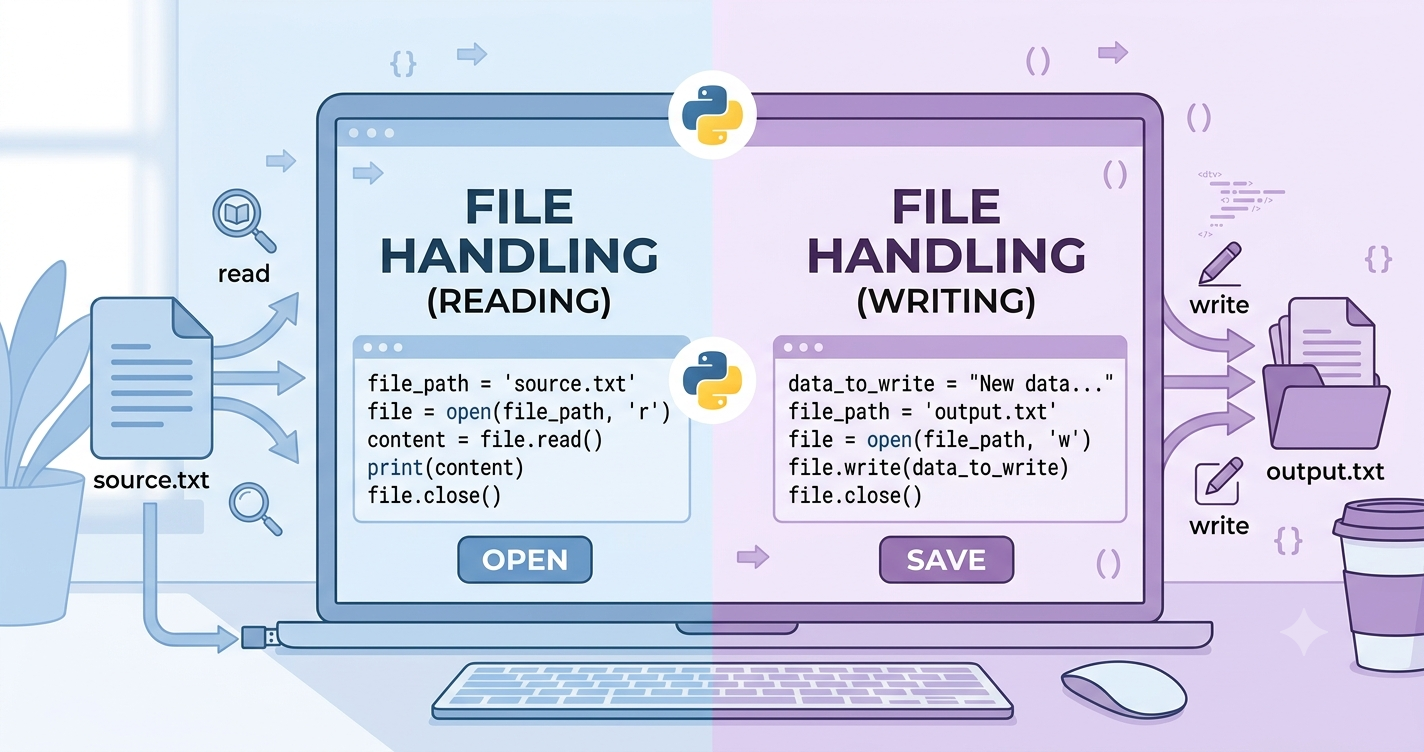
Before reading or writing, you need to open a file using the built-in open() function.
Basic Syntax:
file = open("example.txt", "mode")Common file modes:
'r'→ Read (default mode)'w'→ Write (overwrites file)'a'→ Append (adds data at the end)'x'→ Create a new file'b'→ Binary mode't'→ Text mode (default)
Example:
file = open("data.txt", "r")But here’s something important: always close the file after opening it.
file.close()If you forget this, your program may waste system resources.
Reading Files in Python (Step-by-Step Guide)
Reading files is one of the most common tasks. Python gives you multiple ways to do it.
1. Reading the Entire File
file = open("data.txt", "r")
content = file.read()
print(content)
file.close()
This reads everything at once. It’s useful for small files but not ideal for large ones.
2. Reading Line by Line
file = open("data.txt", "r")
line = file.readline()

while line:
    print(line)
    line = file.readline()

file.close()
This method is better for large files because it processes one line at a time.
3. Reading All Lines as a List
file = open("data.txt", "r")
lines = file.readlines()
print(lines)
file.close()
This returns each line as an element in a list.
Writing Files in Python (Creating and Saving Data)
Writing files is just as easy as reading them.
1. Writing New Content (Overwrite Mode)
file = open("output.txt", "w")
file.write("Hello, Python learners!")
file.close()
Be careful: 'w' mode deletes existing content.
2. Appending Data to a File
file = open("output.txt", "a")
file.write("\nAdding a new line.")
file.close()
This keeps existing content and adds new data at the end.
3. Writing Multiple Lines
file = open("output.txt", "w")
lines = ["Line 1\n", "Line 2\n", "Line 3\n"]
file.writelines(lines)
file.close()
Using “with” Statement (Best Practice)
Manually closing files can be forgotten. Python offers a better way using with, which automatically closes the file.
Example:
with open("data.txt", "r") as file:
    content = file.read()
    print(content)
Why this is better:
- Automatically closes the file
- Cleaner and safer code
- Reduces errors
You should always prefer this method in real projects.
Common File Handling Mistakes (And How to Avoid Them)
Many beginners make small mistakes when working with files. Here are a few to watch out for:
1. Forgetting to close files
Always use with or file.close().
2. Using wrong file mode
- Use
'r'for reading - Use
'w'carefully (it erases data)
3. Not handling file paths properly
If your file is in another folder, you must provide the correct path:
open("folder/data.txt", "r")4. Ignoring encoding issues
For text files, always specify encoding if needed:
open("data.txt", "r", encoding="utf-8")Real-World Example: Saving User Input
Let’s combine everything into a practical example:
name = input("Enter your name: ")

with open("users.txt", "a") as file:
    file.write(name + "\n")

print("Name saved successfully!")
This small program collects user input and saves it into a file—something many real applications do.
When Should You Use File Handling?
You’ll use file handling in many situations:
- Building login systems
- Saving game progress
- Storing logs and reports
- Working with CSV or JSON files
- Data analysis projects
Once you master this, you unlock a big part of Python programming.
Conclusion
Learning how to read and write files in Python is a key step toward becoming a confident developer. It allows your programs to store and retrieve data easily, making them more powerful and useful in real-world scenarios.
Start by practicing small examples—read a file, write some text, then try appending data. The more you experiment, the more natural it becomes.
Try creating your own file-based mini project today and see how Python handles data behind the scenes.