Have you ever wondered how websites are created? Every webpage you visit, from personal blogs to online stores, starts with one essential language: HTML. If you’re new to web development, learning HTML is the first step toward building your own websites.
In this HTML Basics: Your First Web Page Tutorial, you’ll learn what HTML is, how it works, and how to create your very first webpage from scratch. Don’t worry if you’ve never written code before—this guide explains everything in simple terms with practical examples.
What Is HTML?
HTML stands for HyperText Markup Language. It isn’t a programming language; instead, it’s a markup language used to structure the content of a webpage.
Think of HTML as the skeleton of a website. It tells the browser where headings, paragraphs, images, buttons, and links should appear.
Without HTML, a webpage wouldn’t have any organized content to display.
Why Learn HTML First?
Every web developer begins with HTML because it’s the foundation of web development.
Learning HTML helps you:
- Understand how webpages are built
- Create website layouts
- Add text, images, and links
- Prepare for learning CSS and JavaScript
- Build personal projects and portfolios
Once you’re comfortable with HTML, learning other web technologies becomes much easier.
Tools You Need
The good news is you don’t need expensive software.
You’ll only need:
- A text editor like Visual Studio Code or Notepad++
- A modern web browser such as Chrome or Firefox
- A curiosity to learn
That’s enough to build your first webpage.
Understanding the Basic HTML Structure
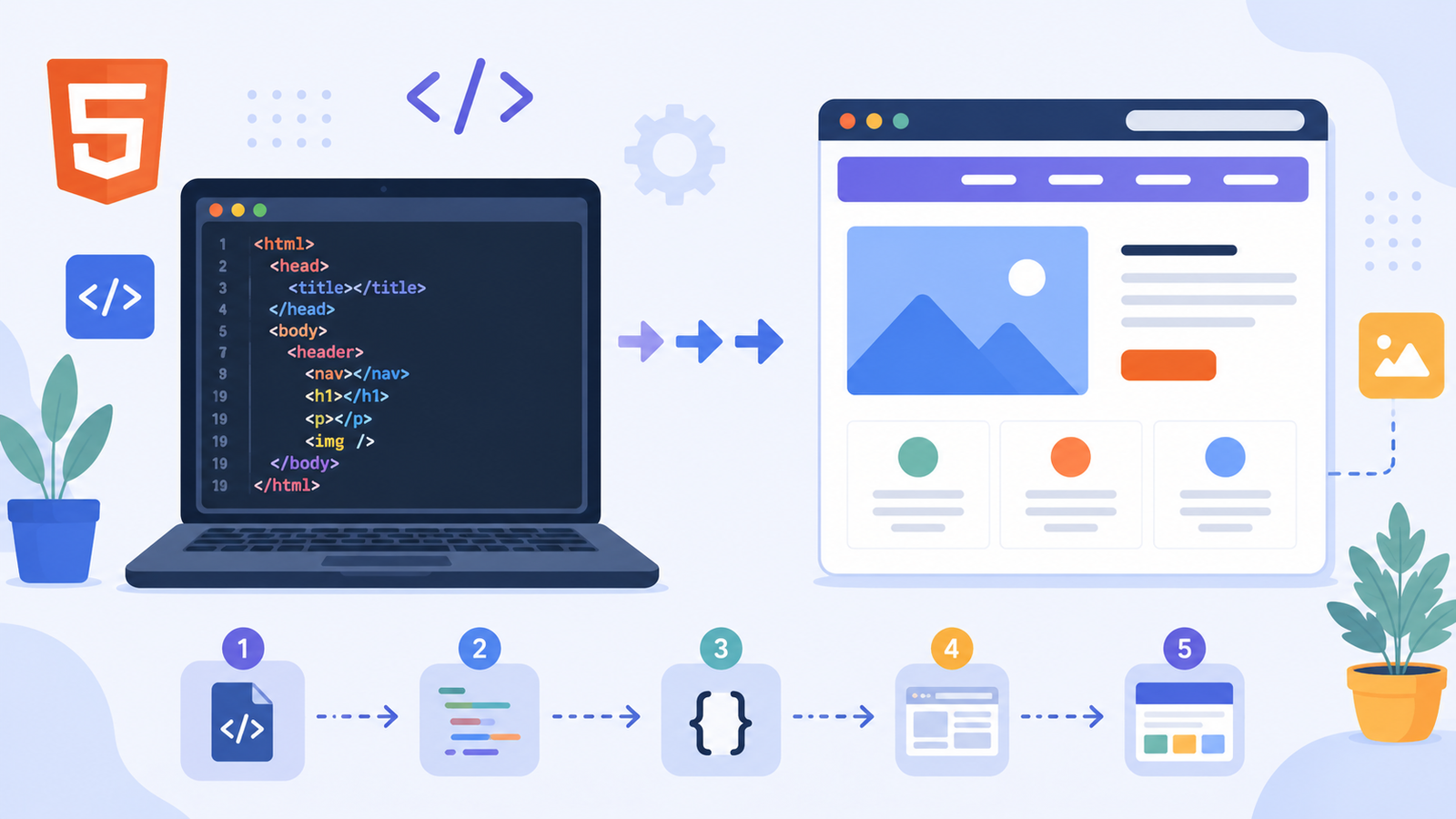
Every HTML document follows a simple structure.
Here’s a complete example:
“`html id=”q1l8nm”
My First Web Page
Welcome to My Website
This is my first HTML page.
Save this file as **index.html**, then open it in your browser. You'll immediately see your first webpage.

## HTML Basics Explained

Let's understand what each section does.

### `<!DOCTYPE html>`

This tells the browser that you're using HTML5.

### `<html>`

This is the main container that holds everything on the page.

### `<head>`

The head contains information about the webpage, such as the page title and links to stylesheets.

### `<title>`

The title appears in the browser tab.

### `<body>`

Everything visitors actually see belongs inside the body tag.

This includes headings, paragraphs, images, links, buttons, and more.

## Adding Headings and Paragraphs

Headings organize your content.

Example:
html id=”l1v4pk”
Main Heading
Subheading
Smaller Heading
Paragraphs are added using the `<p>` tag.html id=”qv0j7h”
This is a paragraph.
Use headings to create structure and paragraphs to explain your ideas.

## Creating Links

Links allow users to navigate between webpages.

Example:
html id=”e6s2wr”
Visit Website
The `href` attribute specifies where the link should go.

Links are one of the most important parts of any website.

## Adding Images

Images make webpages more engaging.

Example:
html id=”x7m9cd”
The `src` attribute specifies the image location.

The `alt` attribute describes the image, which improves accessibility and SEO.

## Creating Lists

HTML supports ordered and unordered lists.

### Unordered List
html id=”m4k2bn”
- HTML
- CSS
- JavaScript
### Ordered Listhtml id=”r5n8yt”
- Learn HTML
- Practice Daily
- Build Projects
Lists help organize information clearly.

## Build Your First Simple Web Page

Let's combine everything into one beginner-friendly project.
html id=”v8w3qe”
My Portfolio
Hello, I’m Alex
I’m learning HTML and building my first website.
My Skills
- HTML
- CSS (Learning)
- Python
This small project introduces many of the basic HTML elements you'll use in almost every webpage.

## Common Beginner Mistakes

Learning HTML is easier when you know what to avoid.

### Forgetting Closing Tags

Incorrect:
html id=”g3c1sj”
Hello
Correct:html id=”u2d9ka”
Hello
“`
Incorrect Nesting
Always place elements inside the correct parent element.
For example, list items belong inside <ul> or <ol> tags.
Misspelling Tags
Even a small spelling mistake can prevent your webpage from displaying correctly.
Take your time and double-check your code.
Practical Tips for Learning HTML Faster
Here are a few habits that helped many beginners improve quickly.
- Build something after every lesson.
- Type the code yourself instead of copying.
- Experiment with different headings and colors later using CSS.
- Keep your HTML neat with proper indentation.
- Open your webpage in the browser after every small change.
One of the best ways to learn HTML is by breaking things on purpose and then fixing them. You’ll understand how each tag works much faster.
What’s Next After HTML?
Once you’re comfortable creating webpages, your next step is learning CSS.
HTML creates the structure.
CSS makes it beautiful.
After that, JavaScript adds interactivity, allowing users to click buttons, submit forms, and interact with your website.
Together, these three technologies form the foundation of modern web development.
Final Thoughts
Completing this HTML Basics: Your First Web Page Tutorial is an exciting milestone for every beginner. You’ve learned how HTML structures a webpage, how to use common tags, and how to build a simple page from scratch.
Remember, every professional web developer once started with a single HTML file. Keep practicing by creating personal pages, experimenting with new tags, and gradually adding more features. Open your code editor today, build your own webpage, and don’t be afraid to make mistakes—they’re part of the learning process. If you create your first website, share your experience in the comments and keep exploring the world of web development!